

How To Do A Test Order On Shopify (Step-by-Step Guide)


Learn how to do a test order on a Shopify store in a beginner-friendly step-by-step guide.
A test order is done before launching a Shopify store live to confirm.
- The checkout process is working without errors.
- Payment gateways (Shopify payments, PayPal, etc.) are set up correctly.
- Shipping rates, taxes, and discounts apply properly.
It helps you spot UX issues by letting you experience your store like a customer. Furthermore, it helps avoid losing customers due to a broken checkout.
In this guide, I have listed the easiest test order method to help you perform better.
Let’s dive in!
Why Test Order on Shopify Before Going Live?
Consider you worked hard, manually designed and set up the whole Shopify store, and launched it. Well done.
Let’s come to the horror side. Your customers fail to order on your site, and your store is preventing them from completing the checkout. Frustrating, right?
That’s why it is better to test your store completely before launching your store live.
Shopify Development and Maintenance
Here, let me tell you the fact, the real problem shows up weeks later, why?
Updated break out, apps conflict, or payments suddenly start failing. That’s why smart businesses don’t just set up their Shopify store. They strategically invest in ongoing Shopify development and maintenance.
It’s like insurance for your sales. You don’t notice it until the day it saves you.
7 Steps Test Order on Shopify (Bogus Gateway)
You can perform a test order on Shopify in just 7 steps. Here is how.
1. Log in to Your Shopify Admin
- Go to the Shopify admin and log in to your store.
- You’ll land on the dashboard.
2. Enable the Bogus Gateway
- Log in to your Shopify admin.
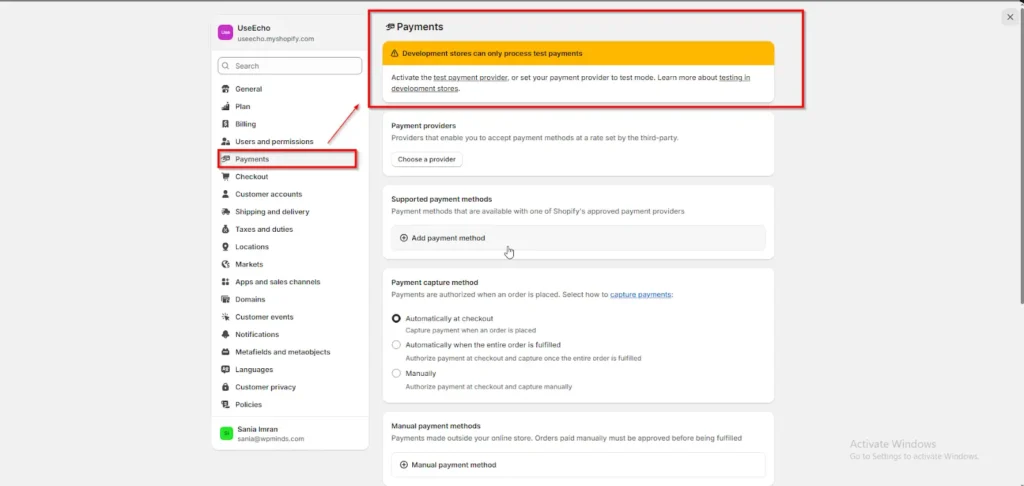
- Go to settings (bottom left corner).
- Click Payments.
- If you already have a payment provider enabled, click deactivate to turn it off temporarily.
- Scroll to third-party payment providers and click, choose a provider.
- Search for bogus gateway and select it.
- Click activate > save.
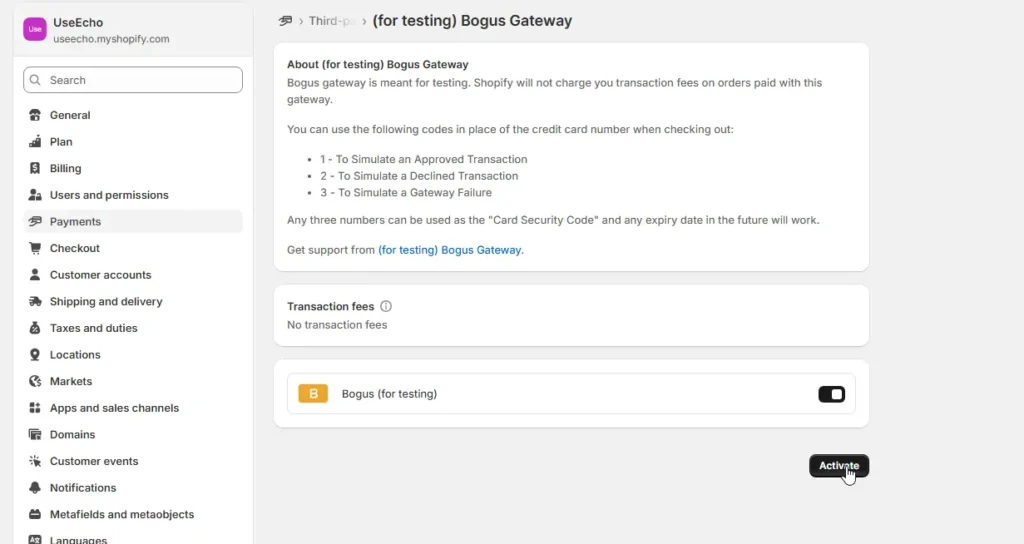

Tip: The test payment gateway lets you simulate successful, failed, and error transactions without using real cards.
3. Add a Product (If You Don’t Have One Yet)
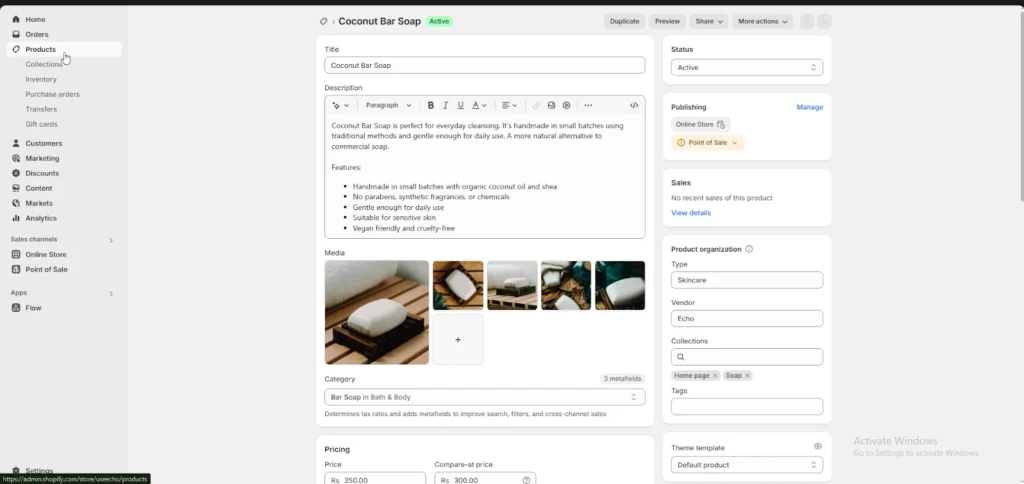
- From your Shopify admin, go to products > add product.
- Add a title, price, and at least one image.
- Click Save.
4. Place a Test Order
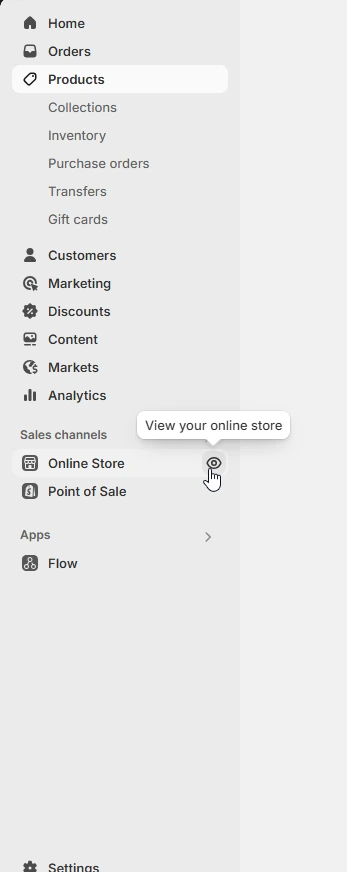
- Visit your store’s front end by clicking the eye icon next to “Online Store.
- Add a product to the cart.
- Proceed to checkout.
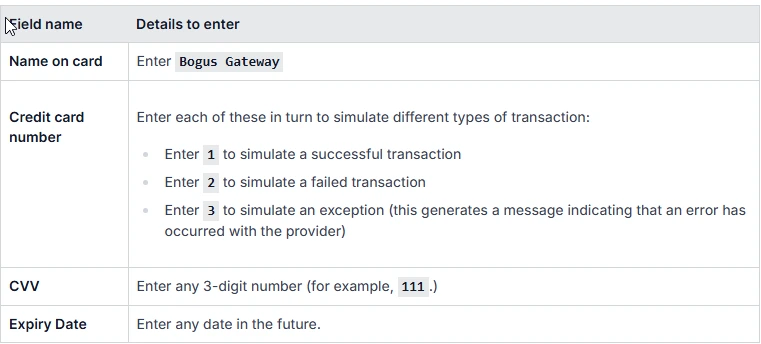
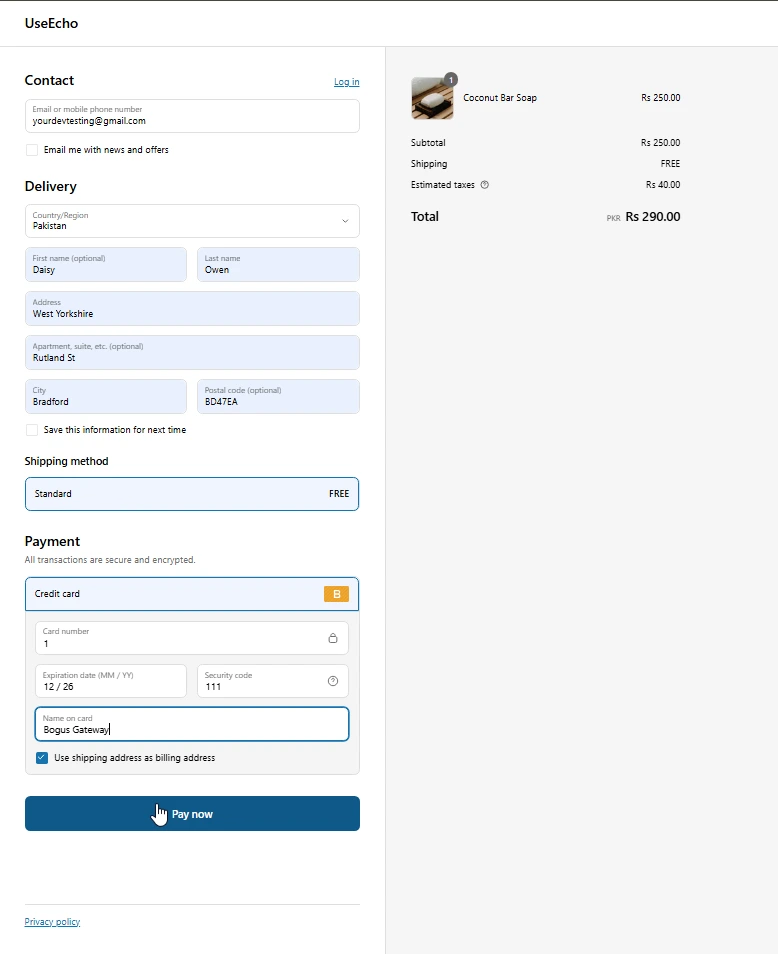
- On the payment page, select credit card (bogus gateway) and enter one of the following:
- For an approved payment, Card number 1
- For a declined payment, Card number 2
- For an error message, Card number 3
- Use any future expiry date and any three-digit CVV.
- Complete the order.
5. Turn Off the Bogus Gateway
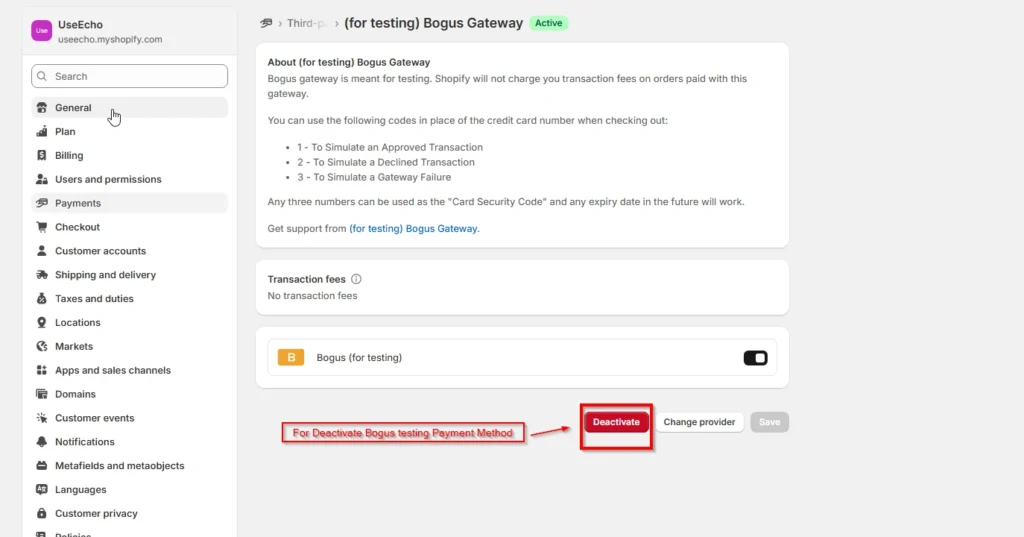
This is the most important point. Once you are done testing the dummy order, make sure you turn the test mode off. Otherwise, your customers won’t be able to place orders properly or make payments.
- Return to settings > payments.
- Click deactivate next to the bogus gateway.
- Re-enable your live payment provider so your store can start accepting real payments.
6. Review Your Test Order
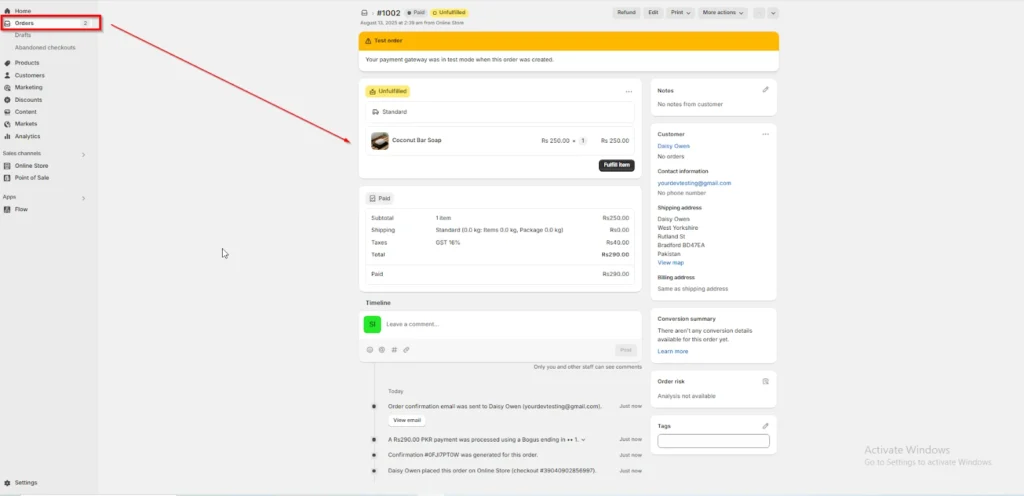
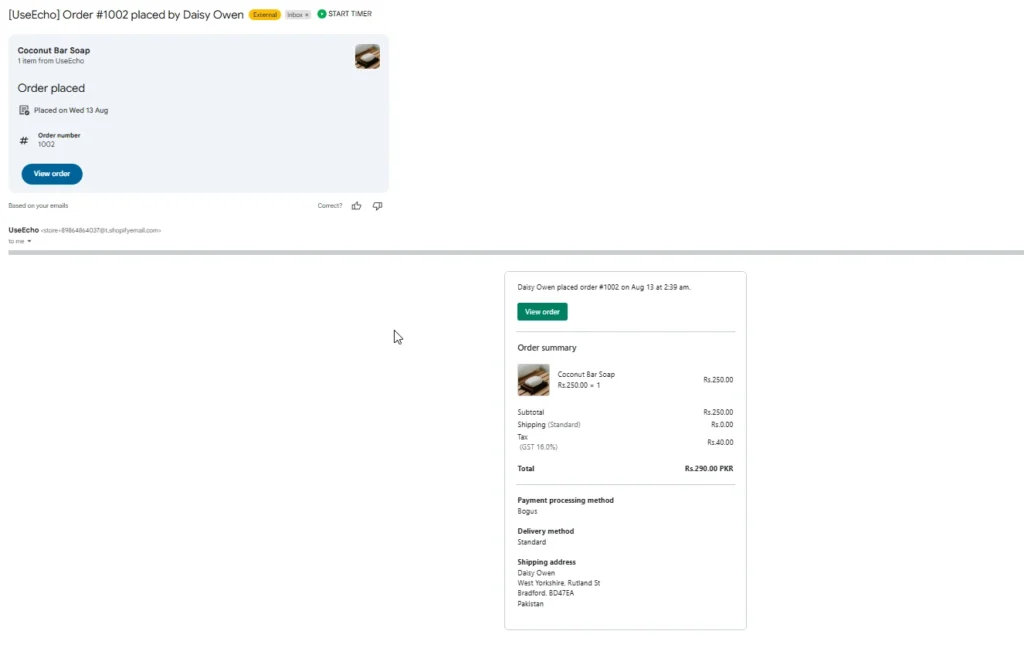
- In your Shopify admin, go to orders.
- You will see the new order marked as test order.
- Click it to view details such as items purchased, payment status, and shipping info.
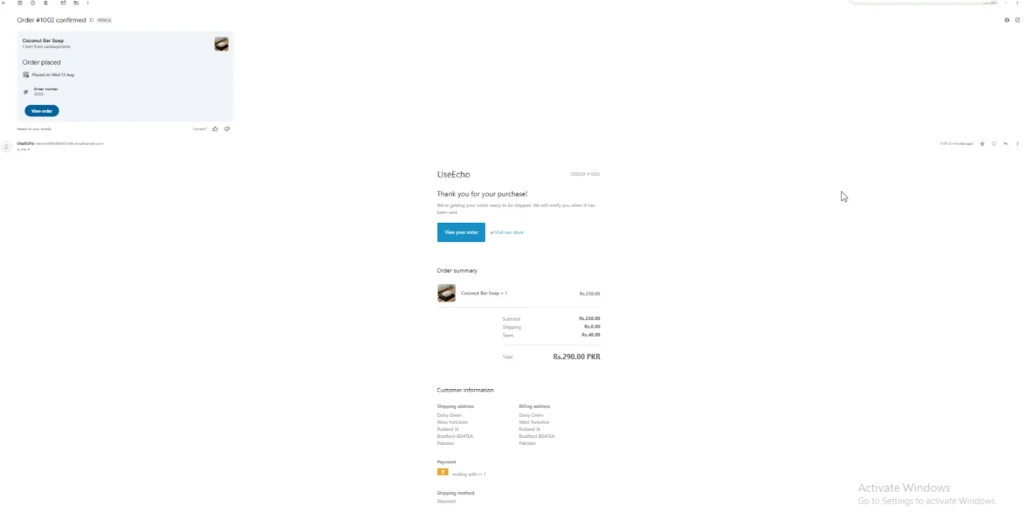
7. Check Your Email
After placing the test order, you’ll receive an order confirmation email, just like a real customer would.
Review it carefully to ensure:
- The store name, logo, and branding appear correctly.
- The order details match the purchase.
- The wording and tone are professional and error-free.
This step helps you confirm that your email notifications are working as they should be, before your store goes live.
User Side Email
Admin Side Email
Conclusion
Follow these 7-step instructions on how to test an order on Shopify before going live.
Follow each step in a series to ensure everything works smoothly and to avoid losing customers and payments.
Remember, testing your store is just the first step. To keep it secure, fast, and error-free, you need ongoing care.
Our Shopify development team helps store owners like you focus on sales. We handle updates, fixes, and optimizations in the background.
Get in touch! Keep your Shopify store running without worry.
How to complete a Shopify test order?
Doing a test order on Shopify is easy. Enable the Bogus Gateway, place a test checkout, and review the order in your admin and in the last turn it off to get real orders.
Does Shopify have test mode?
Yes, Shopify allows you to test order and perform dummy payments in the test mode, to ensure your store runs well.
How do I place a sample order on Shopify?
Place a sample order using bogus or dummy method. Make orders and payments then turn off the test mode. Its recomended to also test with your real card in live mode to make sure everythings runs fine in live mode. Than make a refund.
How do I manually add an order on Shopify?
Go to orders > create order in your admin and add products, customer, and payment details.
What is the Bogus Gateway in Shopify?
Bogus Gateway is a kind of dummy method Shopify allows to test products and payments. It is one of the easiest method to test order on your Shopify store, before making it go live.

Popular Guides
View All Guides