

Setting Up Shopify Google Analytics- Complete Guide


Need help setting up your Shopify Google Analytics?
Not satisfied with Shopify’s default stats and want to connect your Shopify store to Google Analytics? But don’t know how?
Well! We do. And we have designed a complete step-by-step guide to help you set up GA4 for Shopify
Let’s dive in.
Step-by-Step Guide to Setting Up Google Analytics for Shopify
Walk through this guide and follow each step to integrate advanced analytics for Shopify.
1. Create a Google Analytics Account
- Go to Google and search “Google Analytics.”
- Go to Google Analytics.
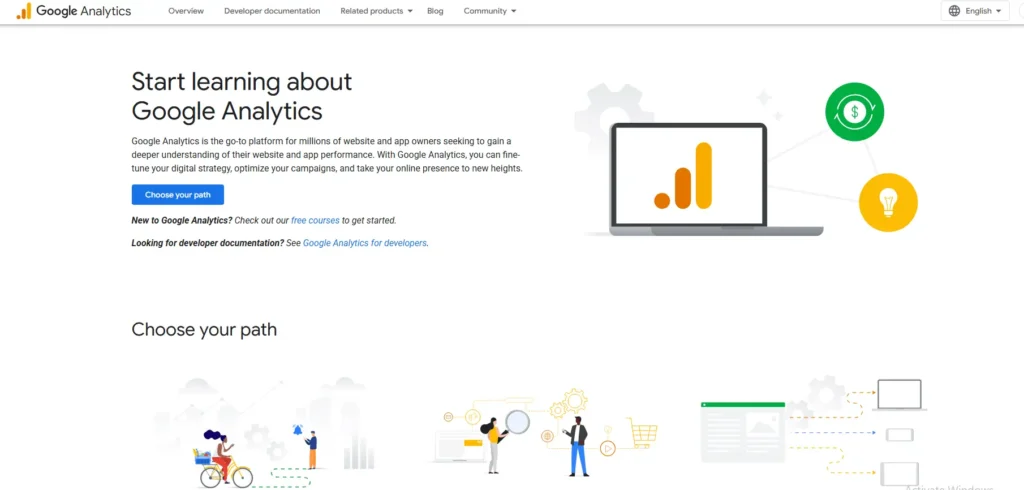
- Click Start Measuring and sign in with your Google account.

- Enter an Account Name (e.g., Your Store Name).

- Configure Property Settings:
- Website URL (your Shopify store)
- Industry category
- Reporting time zone

- Click Create and accept Google’s terms.
2. Set Up a Data Stream for Your Shopify Store
- In Google Analytics, go to Admin > Data Streams.
- Click Add Stream → choose Web.

- Enter your Shopify store’s URL and a Stream Name.

- Click Create Stream.
3. Get Your Google Analytics Measurement ID
- In the Web Stream Details, scroll to Tagging Instructions.
- Copy your Measurement ID (looks like G-xxxxxxxxxxx).
- Copy this ID; you’ll need it for Shopify

4. Add Google Analytics to Shopify
- Log in to your Shopify Admin.
- Go to Online Store > Preferences.

- Scroll down to the Google Analytics section.
- Paste your Measurement ID.
- Click Save.

5. Enable Ecommerce Tracking (Optional but Recommended)
In Google Analytics:
- Navigate to Admin > Data Display > Ecommerce Settings.
- Toggle ON:
- Enable E-commerce
- Enable Enhanced Ecommerce Reporting

In Shopify:
- Return to Online Store > Preferences.
- Use Enhanced Ecommerce
6. Verify Your Setup
- Visit your Shopify store.
- In Google Analytics, go to Reports > Real-Time.
- If your visit appears in the active user feed, you’re all set.

Note: Allow 24–48 hours for full data accuracy in detailed reports.
Key Benefits of Integrating GA4 with Shopify
- Get deeper insights into user behavior across your Shopify store with GA4’s advanced tracking.
- Track the entire customer journey using enhanced ecommerce analytics in GA4.
- Set up custom event tracking for CTAs, form submissions, and product interactions.
- Understand cross-device behavior with unified reporting across web and mobile platforms.
- Build audience segments for targeted remarketing and improved Shopify ad performance.
- Leverage predictive analytics to identify high-value customers and forecast sales.
- Access real-time traffic and conversion data to monitor campaign performance instantly.
Conclusion:
In conclusion, Shopify analytics are good as they provide business-specific data. However, if you need more detailed insights, the above is a beginner-friendly in-depth guide to help you set up GA4 for your Shopify store.
If you need help setting up, our Shopify maintenance plans are here to save the day.
Get in touch with us now.

Popular Guides
View All Guides