

WooCommerce to Shopify Migration: Step-by-Step Guide


Yes, migration from WooCommerce to Shopify is possible without losing your products, customers, and rankings.
It’s a common practice for businesses to look for a new platform for ease of use, functionality, and scalability. Most replatforming occurs between WooCommerce, Shopify, and Magento. Squarespace to WordPress replatforming is also included in this list.
27% of the business owners are considering replatforming their online stores, where 61% already planning to migrate to a new platform.
In this guide, we walk you through the complete migration process from WooCommerce to Shopify.
Let’s dive in!
Why Migrate from WooCommerce to Shopify?
Most of the businesses migrate because of the hype of the new platform, either because of ease of use, better speed, or lower cost of ownership.
Main reasons store owners switch to Shopify
- Ease of use: hosting, server, or plugin maintained by Shopify hosting.
- Better speed: Shopify stores convert better because of better speed.
- Built-in security: SSL and PCI compliance.
- 24/7 support: A team of expert from shopify available 24/7 for help and support.
- App ecosystem: 8,000+ Shopify apps to extend features
- Scalability: Unlike WordPress, Shopify frees you from technical headaches. You can scale fast without worrying about technical issues ( all handled by the Shopify team)
When not to Migrate
If your store depends on custom WordPress-only plugins or workflows that Shopify doesn’t replicate, consider keeping WooCommerce. Read woocoemmerce v/s Shopify complete guide.
Explore Shopify maintenance services to plan your website migration
Pre-Migration Checklist
Migration seems an easy process, but it’s technical; you need to take care of a lot of things, otherwise you may lose data, rankings, or traffic.
An unplanned migration may cause you to start from the beginning. Here is a pre-migration checklist that keeps you from making these losses.
- Take a full backup of WordPress files and database.
- Export all products, customers, and orders (WooCommerce → Tools → Export).
- Note any custom fields or product attributes (e.g., color, size, material).
- Note all the plugins and any third-party apps added for specific functionality.
- Save images, theme files, and static pages.
- Audit all URLs and permalinks for redirects.
- Freeze new orders until migration is done.
Types of Migration
| Type of Migration | Description | Best For | Benefits |
| Manual Migration | Export CSVs from WooCommerce → import into Shopify. | Small stores (under 200 products) | Free, full control |
| Automated Migration Apps | Tools like Cart2Cart, LitExtension, or Matrixify automate most of the process. | Medium to large stores | Fast, reliable, preserves relationships |
| Hire an Expert / Agency | For complex or high-volume stores. | Custom workflows, subscriptions, or multi-language setups | Complete handling of SEO, redirects, and testing |
WooCommerce to Shopify Migration Process
Let’s go step-by-step
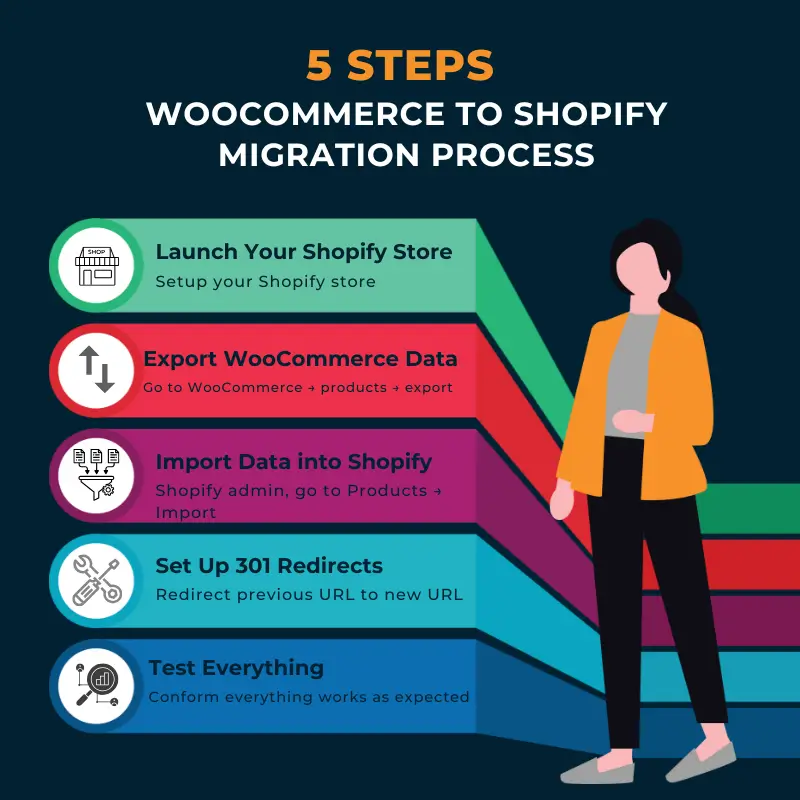
Step 1: Launch Your Shopify Store
- Setup your Shopify store
- Choose your plan
- Set your currency, language, tax, and shipping settings.
- Pick a theme (customize later after data import).

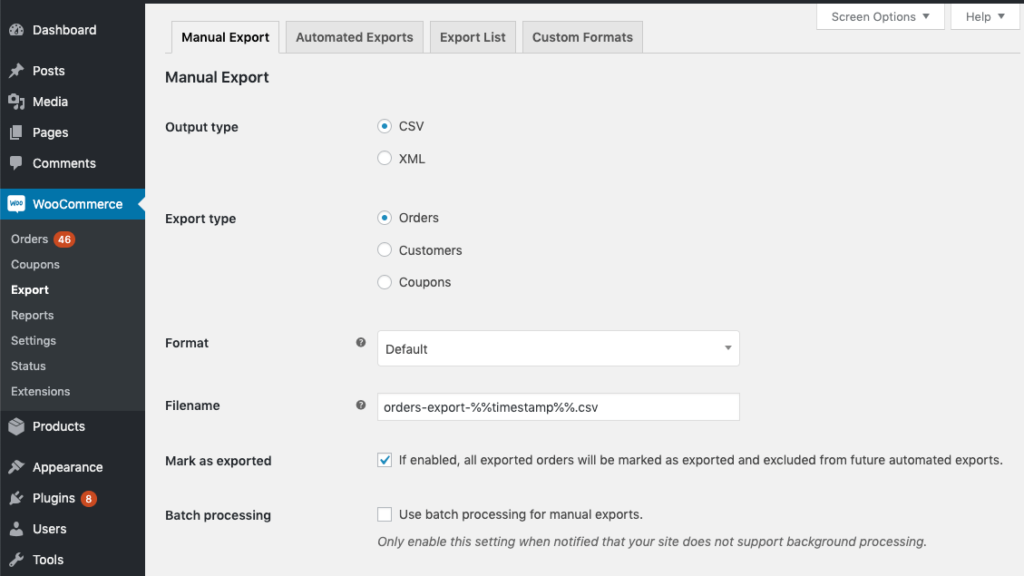
Step 2: Export Data from WooCommerce
This is an important step:
- Go to WooCommerce → products → export. (repeat for all data)
- Do the same for products, customers, and orders to export as separate CSV files.
- Verify CSV files,check for image URLs, SKUs, and categories.
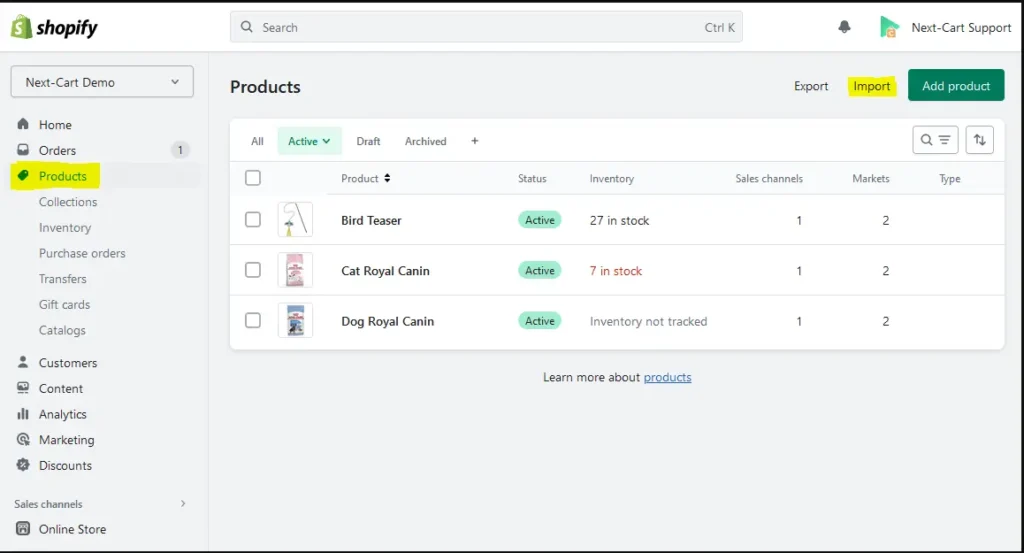
Step 3: Import Data into Shopify
- In Shopify admin, go to Products → Import.
- Upload your CSV file(s).
- If using Cart2Cart or LitExtension, connect both stores and let the app handle mapping and migration.
- Review imported data in Shopify — check sample products and customer records.
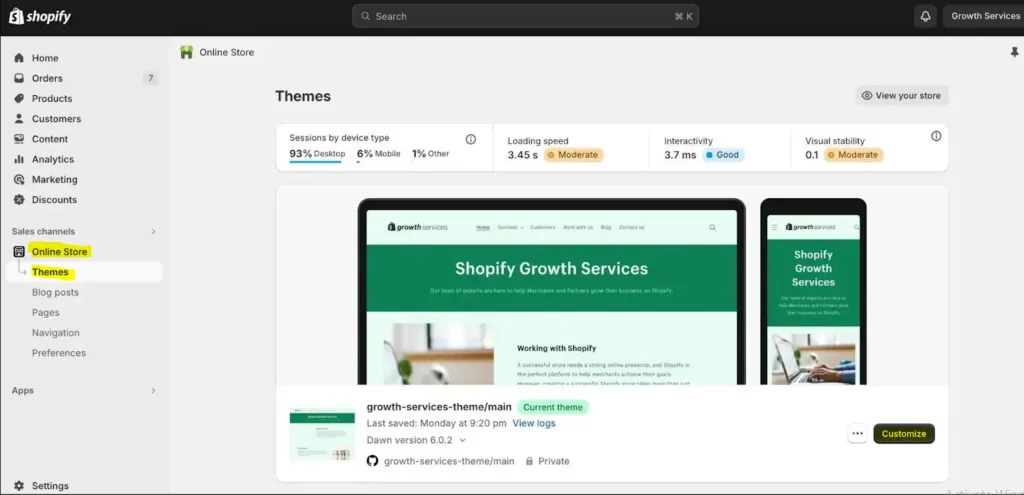
Step 4: Design & Customize Your Store
Start with:
- Choose an appropriate Shopify theme that matches your brand
- Rebuild navigation menus and pages (Home, About, Contact, Policies)
- Install key apps
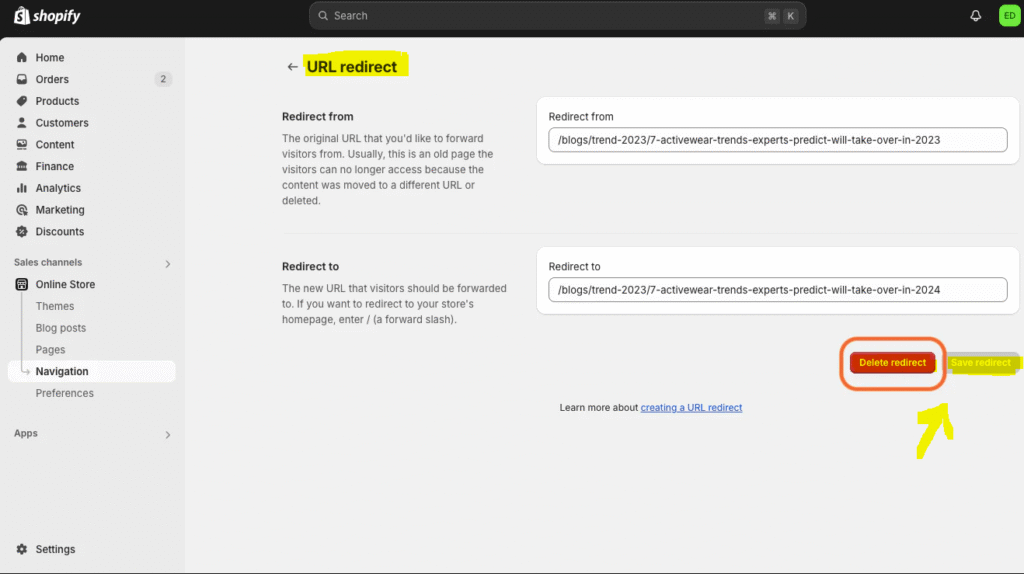
Step 5: Set Up 301 Redirects For SEO and UX
To retain rankings and organic traffic, it’s important to redirect the previous URL to the new URL in Shopify
- Create 301 redirects from old URLs to new ones
- Submit the new sitemaps
- Check broken links using a crawler tool.
- Now remap internal links and rewrite the metadata, or fill in the old metadata in Shopify.
Step 6: Test Everything
It’s good practice to test everything before going live
- Add and complete a test order.
- Verify payment gateways and checkout flow.
- Test shipping rates and tax settings.
- Check the store on mobile and desktop.
- Confirm images, URLs, and navigation menus work.
Post-Migration Checklist
Now that your data and design are live, confirm everything works as expected.
- Check all product listings, SKUs, and inventory counts.
- Verify order and customer data.
- Reconnect payment gateways and shipping providers.
- Test email notifications and contact forms.
- Reinstall tracking scripts, GA4, Facebook Pixel, and Hotjar.
- Check all pages for 404 errors and redirect them to the product or home pages.
- Keep tracking for URLs and errors. Update internal links and metadata on your Shopify store.
Conclusion
Wrapping up, migration from WooCommerce to Shopify is an easy yet technical procedure. We have listed a complete step-by-step guide along with pre- and post-migration checklist.
The complete migration process includes backing up and exporting your previous website. Launch a new Shopify store (try to launch with a similar name domain), import data into the Shopify store, run the import, test all data, and make the store live. Now keep testing and reviewing for the first week or until everything runs smoothly.
If your store includes custom functions or a large database, consider hiring a migration expert to handle the migration.
We can help
Ready to make the switch?
Let us handle your WooCommerce to Shopify migration, so you can focus on growing your business without the technical hassle.
Need help planning or executing your migration? Book free consultation.
FAQs
Can I migrate my orders and customers to Shopify?
Yes. You can migrate orders and customers using Shopify’s import tools or apps like Cart2Cart and LitExtension.
Will I lose SEO rankings after migration?
No, as long as you set up 301 redirects and resubmit your sitemap to Google Search Console. However, If you do not follow the checklist, your website will lose rankings.
Can I use my WooCommerce theme in Shopify?
No, Themes are platform specific, WooCommerce themes works on WordPress and Shopify themes works well on shopify.
Does customers credentials transfer?
No, customers will need to reset their passwords after migration.
How long does the migration take?
Small stores can migrate in a few hours. However, Larger stores with complex data may take several days, including testing and theme customization

Popular Guides
View All Guides