

Non-Negotiable WordPress Maintenance Tips To Follow in 2026


Do you know that the average WordPress website faces more than 30,000 malware attack attempts per hour?
If your website is not updated and maintained, there is a high risk you site will go crash.
WordPress maintenance is all about keeping your site updated, performing regular backups, and maintaining security protocols to ensure everything runs smoothly.
In this article, we walk you through the best practical WordPress maintenance tips. Why WordPress maintenance is necessary and 15 points checklist with the best tips to perform them.
Let’s dive in!
Why WordPress Maintenance Matters?
WordPress is a dynamic platform. Every update, core, theme, or plugin brings security vulnerabilities, performance improvements, and new features.
Ignoring maintenance can create:
- Security Loopholes: Outdated code is the primary entry point for attackers
- Poor User Experience: Slow sites drive visitors away
- Broken Functionality: Forms stop sending emails, checkout pages crash, and leads are lost
- SEO Declines: Google prioritises fast, secure, and stable websites
Maintenance is about keeping the site live. So, everything keeps running smoothly.
15-Point WordPress Maintenance Checklist
Things are easy when you have a checklist. A checklist saves hours of procrastination, guesswork, and juggling between tasks.
Here is a WordPress maintenance checklist to follow in 2026.
- Check the core WordPress update
- Update the theme
- Check and update plugins in the safe zone
- Keep a regular backup routine (the 3-2-1 rule)
- Use staging environments
- Strengthen WordPress security
- Keep CWV in the green zone
- Optimise website caching
- Optimise your database regularly
- Monitor website health from the WordPress dashboard
- Test forms and lead capture systems
- Audit mobile responsiveness
- Conduct technical SEO audits
- Review user roles and access
- Plan for scalability
1. Always Update WordPress Core
WordPress currently runs on version 6.9.1. Core updates are secure, improve performance, and rarely break functionality. However, these updates are safe, but always take a manual backup before updating.
Best practices
- Take a manual backup before updating, even for minor releases
- Test updates on a staging site before updating live
- Schedule updates during low-traffic hours (e.g., 2 AM)
- Avoid skipping major versions to prevent security risks
2. Update Themes
Themes can cause conflicts if updated without testing. It is a common issue that the website performance goes down or the website crashes right after the theme update.
The core reason are most of the themes integrate tightly with page builders (like Elementor or Gutenberg).
Updating the theme often results in how it interacts with page builders and the plugins, and this ultimately results in broken page layouts, CSS/JS errors (one of the most common issues in technical SEO audits). It also sometimes causes missing buttons or blocks on the page.
Key steps
- Test functionality before and after the update. Check if the homepage slider still works? Is the mobile menu responsive?
- Case Study: We once onboarded a client whose revenue-generating site went down after a theme update. An expert team had to access the cPanel, navigate the theme folders, and manually identify a faulty script causing a fatal error. The fix required either removing the script or reverting to a backup
- If you aren’t technically savvy, don’t hesitate to revert to an old backup while you call an expert
3. Update Plugins Strategically
Plugins enhance functionality, but updates can slow down your site or cause conflicts. 22% of websites encounter conflicts after plugin updates, according to Moldstud studies.
Old plugins are a major reason for security breaches, but updating add-ons without testing causes conflicts. To prevent these, follow the WordPress maintenance tips below.
Tips for plugin updates
- Identify the purpose of each plugin
- Test plugin functionality in a staging environment before updating live
- Take a manual backup before updating
- For large agencies, use monitoring platforms like SiteGround or WP Platform to track plugin performance hourly/daily
4. Keep a Regular Backup Routine
Backups are the lifeline of any WordPress website. Always take a manual backup before any major update to save hours of work.
Backup tips
- Follow the 3-2-1 Rule: Keep 3 copies of your data, on 2 different storage types, with 1 copy off-site (cloud, Google Drive, or AWS)
- Schedule daily backups for active e-commerce sites, weekly for low-traffic blogs
- Always take a manual backup before any major update. This simple step can save you hours of recovery work.
- Test your restore function. A backup is useless if you can’t restore it
5. Use Staging Environments
The most important point in WordPress maintenance tips is using a staging environment.
A staging site allows you to test updates, new plugins, and theme changes without affecting live traffic.
Benefits
- Detect conflicts before going live
- Avoid loss of leads or form entries during updates
- Safely test performance improvements
6. Strengthen WordPress Security
Security is the most critical aspect of maintenance. Hackers often inject malicious scripts (like JX scripts) into your header or footer files, which are hard to detect without proper monitoring.
Tips for security
- For individual owners, a monthly subscription to a security plugin (like Wordfence) is a solid investment
- For in-house teams, use enterprise-grade platforms like Sucuri. It acts as a firewall (similar to Cloudflare). You simply copy the provided A record and update your domain’s DNS settings to route traffic through their protective network
- Enable Two-Factor Authentication (2FA) for all admin users
- Limit login attempts to prevent brute-force attacks
7. Optimise Website Caching
Its not natural, you are dealing with WordPress, and you have not heard of the word catching. A page is not loading (clear the cache), a form broke after the update (clear the cache), and even if your block editor is not normal, you have to go through the cache.
Proper caching improves speed and reduces server load.
Maintenance tips
- Use plugins like WP Rocket or Manage WP
- Configure caching manually if needed
- Always clear your cache after major updates or content changes to ensure visitors see the latest version
8. Optimise Database Regularly
Over time, databases accumulate redundant entries. Cleaning these up results in faster query retrieval and smoother backend operations.
Maintenance steps
- Remove old post revisions
- Delete spam comments
- Clear expired transients
SEO Check While Maintaining WordPress
SEO is most important for website discovery and ranking. The technical SEO is now the KPI for the ranking. In order to keep the SEO stable following are monitored during the maintenance.
9. Monitor Website Health
WordPress has a built-in Site Health tool located in your admin panel (Tools > Site Health). Use it regularly. The best thing is that it recommends the right thing to do.
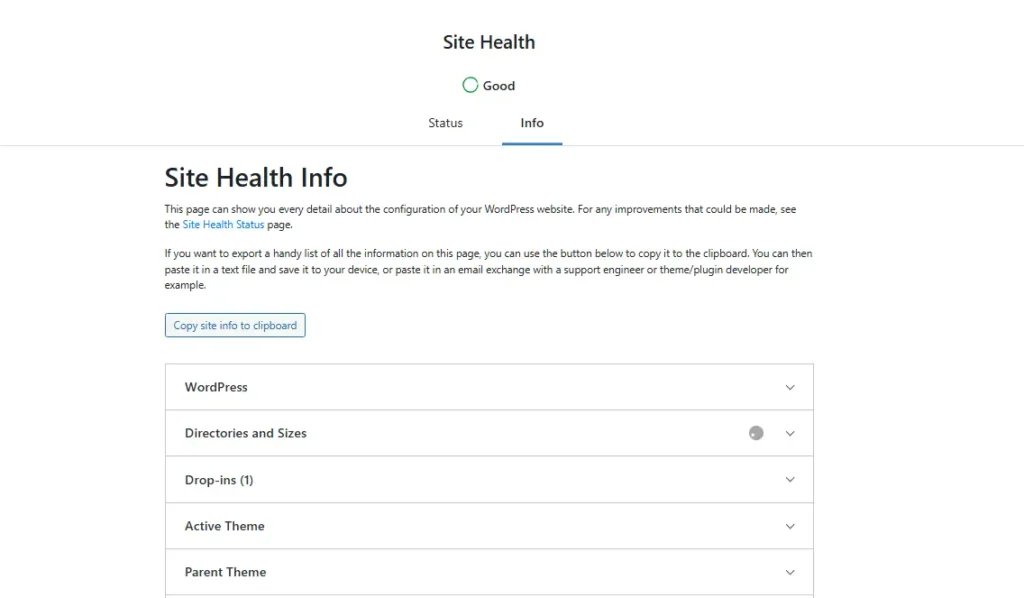
Checks include
- PHP version compatibility (ensure you are on a supported version)
- HTTPS/SSL certificate validity
- Plugin or theme conflicts
- Performance issues and critical errors
10. Test Forms and Lead Capture Systems
Forms, payment gateways, and booking systems are critical for business websites. Always check these when maintaining the website.
Tips
- After every maintenance cycle, submit a test entry through your contact forms
- Ensure CRM integrations (like Mailchimp or HubSpot) are still receiving data
- For e-commerce sites, run a test checkout transaction to verify the process works
11. Audit Mobile Responsiveness
Mobile traffic is dominant in 2026. We have talked about the layout breaks, and after any updates and if you have not cleared the cache properly, the first thing you complain about is responsiveness broke on the mobile devices.
Check
- Layout shifts or broken elements after updates
- Responsive menu navigation (can users tap the right buttons?)
- Mobile page speed using Google’s PageSpeed Insights
12. Monitor Uptime Continuously
Downtime hurts your SEO more than you think. WHY? Because Google bots are active every second.
It destroys user trust and kills conversions. And the worst part, you cannot fix it, as you don’t know what’s actually broken.
Monitoring tips
- Set up uptime alerts with your hosting provider
- Use third-party tools like UptimeRobot to get instant SMS or email alerts if your site goes down
- Track outages and aim to restore service within minutes
13. Conduct Technical SEO Audits
SEO is the primary driver of discovery and ranking. During maintenance, you must ensure that technical SEO remains stable.
Maintenance tips
- Ensure your XML sitemap is updated and submitted to Google Search Console
- Check for broken links (404 errors) that may have appeared after content updates
- Verify that your meta tags and schema markup remain intact
14. Review User Roles and Access
Employee turnover and contractor access can lead to security risks. Old accounts that are no longer used are a prime target for hackers.
Action tips
- Remove old user accounts
- Ensure current users have the appropriate role (editor, author, admin) and not more access than they need
15. Plan for Scalability
One of the WordPress maintenance tips is scale your resources as you grow.
If your traffic grows, your hosting resources need to grow with it. Otherwise, your website experiences downtime, slow loading, and more 503 errors.
Best WordPress Maintenance Packages in 2026
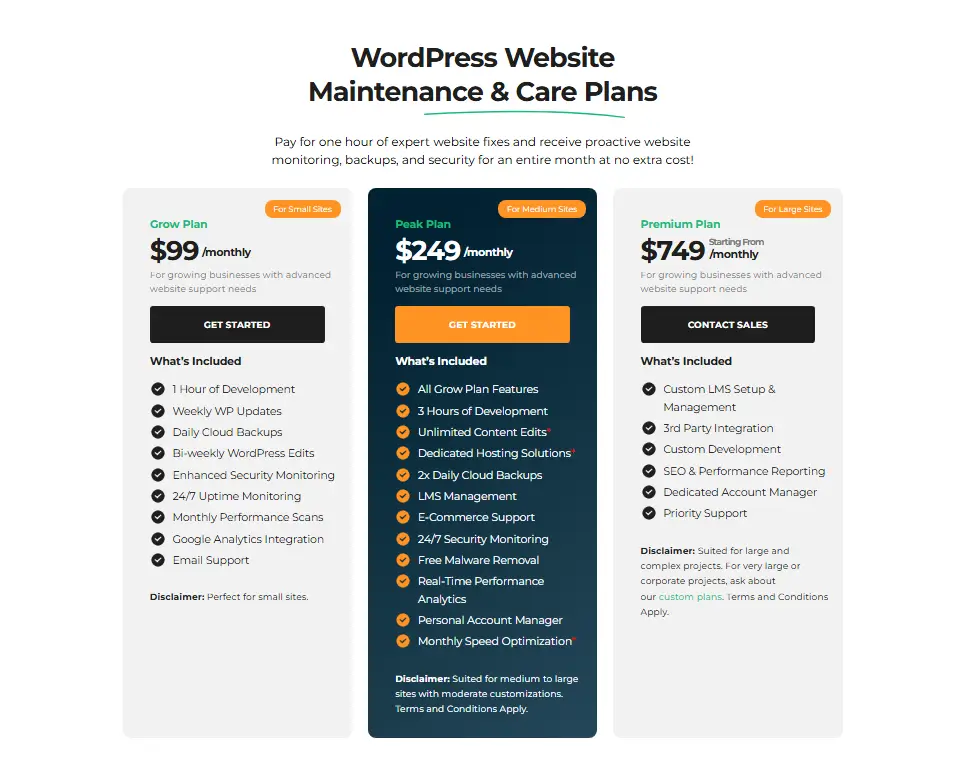
Not everyone has the time or technical expertise to manage this checklist manually. This is why professional maintenance packages exist. The best agencies offer tiered plans based on needs.
- Explore our WordPress maintenance packages
Conclusion
WordPress maintenance in 2026 is a must-do for security, speed, SEO, and reliability. By following these WordPress maintenance tips, you can protect your website, avoid crashes, and keep leads and revenue safe.
Whether you are a WordPress site owner, coach, consultant, or agency, proactive maintenance saves time, money, and reputation.
At WP Minds, we understand that not everyone has the time or technical bandwidth to manage this alone. That is where we come in. Our maintenance packages are designed to handle the heavy lifting so you can focus on what you do best, growing your business.
Explore our expert WordPress maintenance plans today and give your site the protection it deserves.

Popular Guides
View All Guides