

How Hosting Impacts WordPress Speed


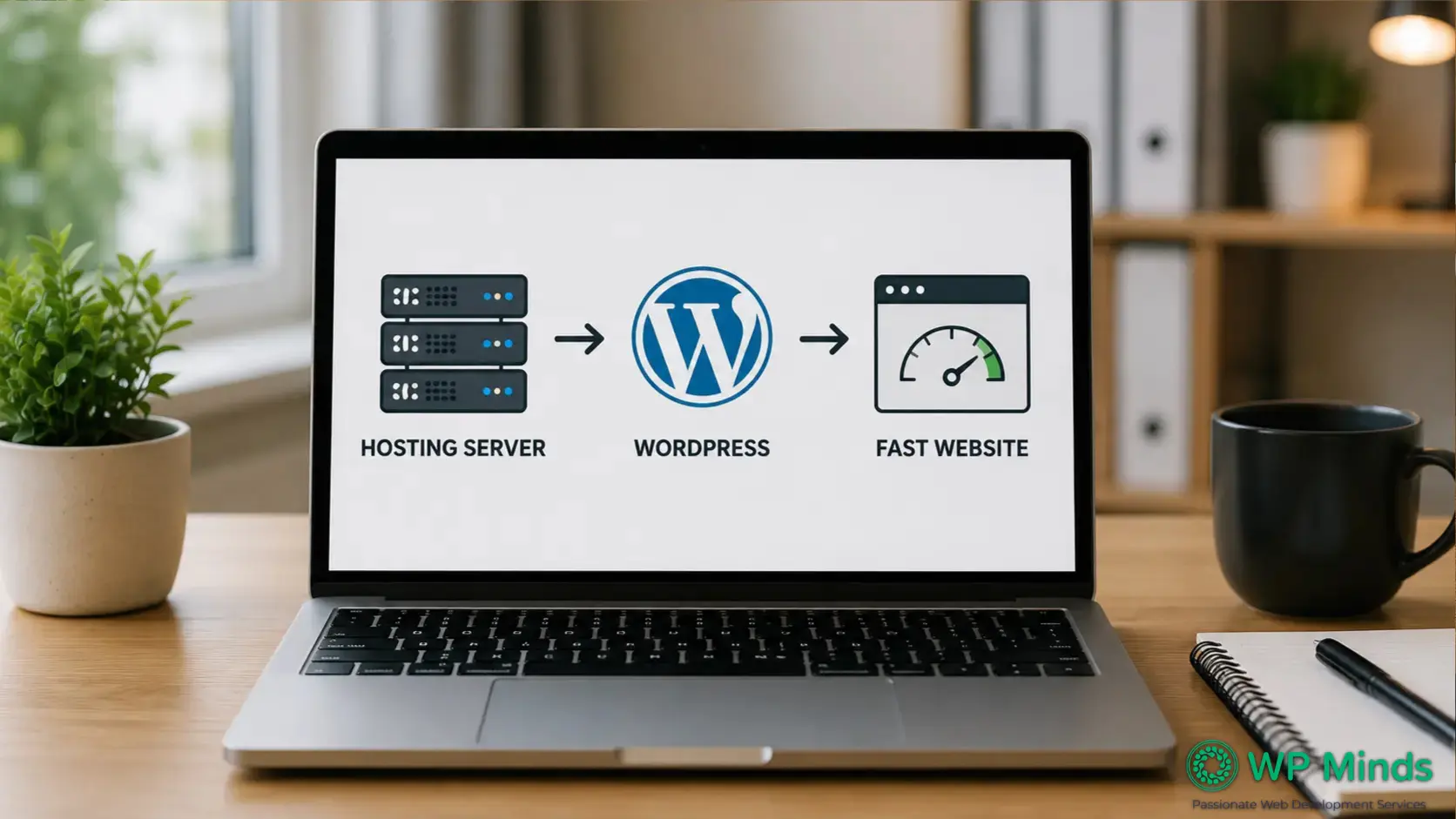
Your WordPress website may have a clean design, optimized images and carefully selected plugins. Yet it can still feel frustratingly slow.
The problem may be underneath the website itself. Your hosting environment affects how quickly WordPress processes requests and sends content to each visitor.
Strong web hosting gives your optimization work a reliable foundation. Weak hosting can limit every improvement you make.
Understanding that connection helps you invest in the right solution. It also prevents you from blaming plugins for problems caused by limited server resources.
Read More: How to Decide the Best Hosting for WordPress in 2026
Why Hosting Matters for WordPress Speed
WordPress builds many pages dynamically. It may run PHP, query a database, load settings and process plugins before delivering a page.
Your hosting server handles that work. Its available resources, configuration, location and traffic levels can all affect WordPress speed.
A faster host cannot repair every performance issue. However, slow infrastructure can create a bottleneck that front-end changes cannot fully overcome.
Five Ways Hosting Affects WordPress Performance
1. Server Response Creates the Starting Delay
Before a visitor sees your page, their browser must connect to your server and request information.
Time to First Byte measures how long the browser waits for the first response. Google describes TTFB as a measure of connection setup and web server responsiveness.
A delayed server response pushes back every later stage of loading. Even optimized images cannot appear before the server begins returning the page.
Google’s TTFB guidance suggests aiming for 0.8 seconds or less as a general target. Results can vary by visitor, location, caching and network conditions.
2. Server Resources Affect Hosting Speed
Every hosting plan provides access to processing power, memory, storage and network capacity. These resources help WordPress execute PHP and database requests.
On crowded shared hosting, many websites may compete for the same resources. A traffic spike on another account could affect your site.
Resource limits become more noticeable on busy websites. WooCommerce stores, membership platforms and learning websites often require more processing than simple blogs.
Reliable hosting speed depends on having enough capacity for normal traffic and sudden demand. Your plan should also support future growth.
Every plan has a limit on simultaneous visitors. Cached visitors are inexpensive; shoppers and logged-in members are not. Once the limit is reached, requests queue. The draft already lists this symptom in the diagnostics section but never explains the cause.
3. Server Location Influences Load Time
Data must travel between your server and each visitor. Longer physical distances usually create more network delay.
Choose a data center near your primary audience whenever possible. An international audience may also benefit from a content delivery network.
A CDN stores eligible content across distributed servers. It can deliver files from a location closer to the visitor.
Cloudflare’s CDN architecture guide explains how edge caching can reduce latency. Images, stylesheets and scripts often benefit from this approach.
A CDN improves delivery, but it does not replace quality hosting. Uncached or dynamic requests may still need the original server.
4. Server Software and Caching Change Processing Time
Hosting performance also depends on server configuration. Current PHP support, efficient database software and modern web server technology can improve processing.
Page caching can make an especially noticeable difference. It stores a ready-to-serve version instead of rebuilding every page for each visit.
The WordPress performance handbook identifies caching as a high-value optimization step. Some managed WordPress hosts include server-level caching automatically.
Object caching may also help database-heavy websites. However, the right setup depends on the website, hosting stack and dynamic features.
5. Uptime Protects Availability and Trust
Speed has little value when visitors cannot access your website. Uptime measures how consistently your hosting service remains available.
Frequent outages interrupt sales, lead generation, course access and customer support. They can also weaken confidence in your business.
Look beyond a host’s advertised uptime percentage. Review its monitoring, support process, backup system and response to service incidents.
How Different Hosting Types Compare
Your hosting type can influence performance, control, support and cost.
- Shared hosting: Affordable and simple, but resources are shared across multiple accounts.
- Managed WordPress hosting: Usually includes WordPress-focused caching, security, updates and technical support.
- VPS hosting: Provides allocated virtual resources and greater control, but may require server management.
- Cloud hosting: Can distribute workloads and scale resources, depending on the provider and plan.
- Dedicated hosting: Offers an entire server, but usually costs more and requires technical oversight.
The most expensive option is not automatically the best choice. Select a plan that matches your traffic, features, team and support needs.
How to Tell Whether Hosting Is Slowing Your Website
Begin with evidence before moving your site. Test several important pages with PageSpeed Insights, including your homepage and conversion pages.
Review mobile and desktop results. Pay attention to server response, TTFB, Largest Contentful Paint and overall load time.
Then look for patterns:
- Does the first uncached visit feel much slower?
- Does performance decline during busy periods?
- Is the WordPress dashboard also slow?
- Do simple pages respond slowly despite small file sizes?
- Are CPU, memory or database limits repeatedly reached?
- Does the website improve when tested near the server location?
Run several tests instead of relying on one score. Testing results can change because of network conditions, server load and test location.
Your host can review resource usage and server logs. A WordPress specialist can also separate hosting limitations from theme, plugin, database or content issues.
What to Look for in a WordPress Host
Compare more than storage and price. A suitable hosting provider should offer:
- Current, supported PHP versions
- Sufficient CPU and memory for your website
- Server-level or compatible page caching
- Data centers near your target audience
- CDN integration or easy CDN setup
- Clear uptime monitoring
- Automated backups and a practical restore process
- Staging tools for safe testing
- Support staff familiar with WordPress
- Simple options for scaling resources
Ask whether the plan has visit, worker, bandwidth or database limits. These details often matter more than an impressive storage allowance.
Common WordPress Caching Mistakes
- Two caches conflicting. Many hosts cache pages at the server level. If a caching plugin is added on top, there are two systems storing copies of the site. When a page is updated, one copy is cleared, but the other isn’t, so visitors still see the old version. Worth noting that some managed hosts don’t permit caching plugins for this reason.
- Caching that appears active but isn’t. Site owners see the plugin switched on and assume it’s working, while most visitors still receive the uncached version. Suggested reader action: ask the host what percentage of pages are being served from cache. Hosts can see this; site owners generally can’t.
- Caching can break site features. Contact forms, menus and checkout buttons sometimes stop working once caching is enabled. The draft already advises testing on staging; this is the reason why and stating it will make that advice land harder.
Also Read: How to Move Your WordPress Site to a New Host: The Stress-Free Way
Hosting Is Only One Part of WordPress Speed
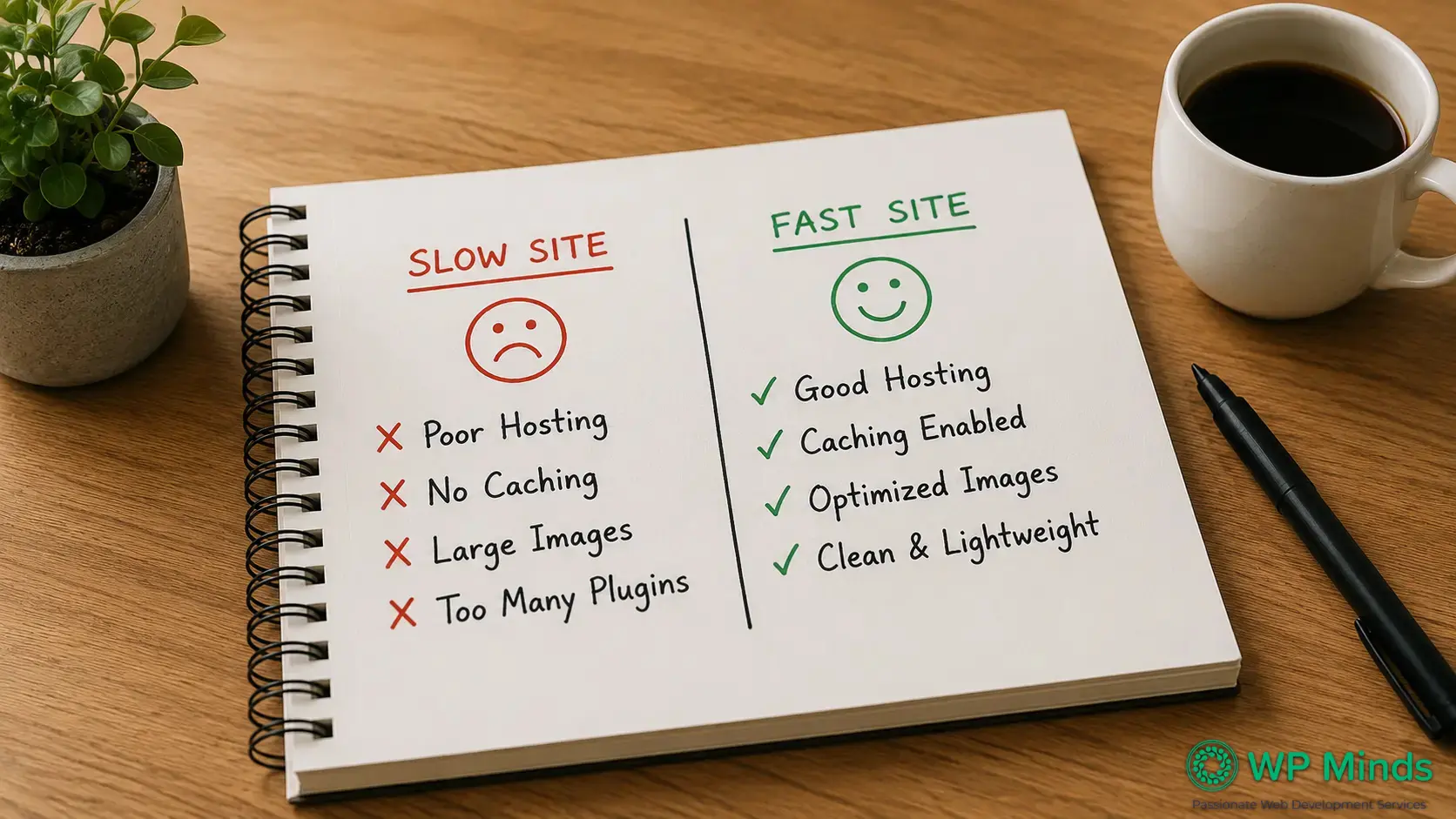
Moving to stronger hosting may reduce delays, but it will not automatically fix a heavy website.
Large images, excessive plugins, outdated themes, database clutter, third-party scripts and inefficient code can still increase load time.
After reviewing hosting, continue with a complete website optimization strategy. Compress images, remove unused plugins, update software and control unnecessary scripts.
Test each change on a staging site first. Some caching, minification and script-delay settings can affect forms, menus, checkout pages or tracking.
Performance work should focus on real visitors, not only a perfect score. Test important actions across devices after every major change.
Faster Pages Can Support More Conversions
Visitors should not wait to understand your offer or access your next step. Slow pages introduce friction before your message has a chance to work.
Better WordPress speed can make service pages, forms and checkout experiences feel easier to use. It should support a broader conversion strategy.
Speed cannot replace clear messaging or strong calls to action. However, it helps visitors reach those elements without unnecessary delay.
Find Out What’s Slowing Your WordPress Site.
Conclusion: Build WordPress Speed on the Right Foundation
Your host influences server response, resource availability, caching, CDN delivery, uptime and overall hosting speed. Your website configuration determines how efficiently those resources are used.
The best results come from reviewing both layers together.
If your site remains slow, WP Minds can identify the real bottlenecks. Our WordPress Speed Optimization Service improves performance without relying on guesswork.
More Related Blogs:
- Uptime Monitoring for Reliable Websites
- 7 Ways to Improve WordPress Page Speed Optimization
- Non-Negotiable WordPress Maintenance Tips To Follow in 2026
FAQs (Frequently Asked Questions)
How do you speed up your WordPress sites?
Start by measuring current performance. Then optimize images, enable caching, remove unnecessary plugins, update WordPress and review hosting resources. Also reduce heavy scripts and clean unnecessary database data. Retest important pages after every major change.
What changes can I implement to speed up a very slow site?
Fix the largest bottleneck first. That may involve better hosting, page caching, compressed images, fewer plugins or optimized database queries. Avoid making every change at once. A staged process makes improvements easier to measure and problems easier to reverse.
How does web hosting affect website speed and performance?
Web hosting provides the server resources that process WordPress and deliver its files. Limited resources or poor configuration can delay server response. Hosting also affects caching, data center location, scalability, CDN integration and uptime. These factors influence speed and reliability.
How to speed up server response time?
Enable page caching, use a current PHP version, optimize database queries and remove resource-heavy plugins. Select a server near your audience. You may also need more CPU, memory or PHP workers. Ask your host to identify resource limits and slow server processes.
How to Boost Your WordPress Website Speed Without Premium Plugins?
Resize and compress images before uploading them. Remove unused plugins and themes, update all software and enable your host’s caching tools. WordPress also supports native image lazy loading. Free CDN plans and free performance plugins may help, but test compatibility carefully. Premium plugins are optional. Good hosting, disciplined maintenance, lightweight design and thoughtful content choices can deliver meaningful improvements.

Popular Guides
View All Guides