
WooCommerce Setup Guide: How to Launch Your First Store in 2026


Creating an online store is not just about having items to sell and selecting colors. You will need to have good hosting, payments that are secure, shipping policies and check out procedures.
Using WooCommerce, you can have a flexible online store through WordPress. The main software of WooCommerce is open source and free to use. You have the liberty to change settings of your store, payment systems, shipping and products.
It must be noted that it is necessary to plan ahead while setting up a good WooCommerce installation. Here you will find information about the configuration of your store for launch in 2026.
Prerequisites for Installing WooCommerce
Prior to WooCommerce installation, one should determine what goals he wants his online store to achieve. A well-defined website strategy will help avoid costly changes to the site.
Determine Your Products and Audience
Start with answering these questions:
- What kind of WooCommerce products are you going to sell?
- Physical goods, downloadable products, subscriptions or services?
- Where do your customers come from?
- Which currencies would you accept?
- How do you plan to manage inventory and delivery?
- Which payment gateways would you use?
- What are your customer’s shipping options?
These factors will influence your hosting, plugins and even your store’s structure.
Select Good WooCommerce Hosting
Your store’s speed, security and ability to handle traffic will all depend on the hosting service you choose.
Look for hosting that includes:
- A free SSL certificate
- Automatic backups
- Current PHP and database support
- Malware protection
- Staging site functionality
- Reliable technical support
- Scalable server resources
It is recommended by WooCommerce to use currently supported versions of WordPress, PHP and database software. You can check out the official WooCommerce server guidance before choosing your hosting plans.
Read More: How to Speed Up WooCommerce Backend and Improve Store Performance
Install WordPress and Enable SSL
WooCommerce requires WordPress installation, often available via one-click from hosting providers. Install SSL certificate before accepting payments. SSL enables safe data transmission between your customers and your store. Ensure that your website loads through “https://”.
Step 1: Install WooCommerce and Complete the Setup Wizard
WooCommerce can be installed directly from the WordPress dashboard.
Installation of WooCommerce Plugin
The following process needs to be followed:
- Go to Plugins > Add New Plugin.
- Search for “WooCommerce.”
- Select the official WooCommerce plugin.
- Click Install Now.
- Click Activate.
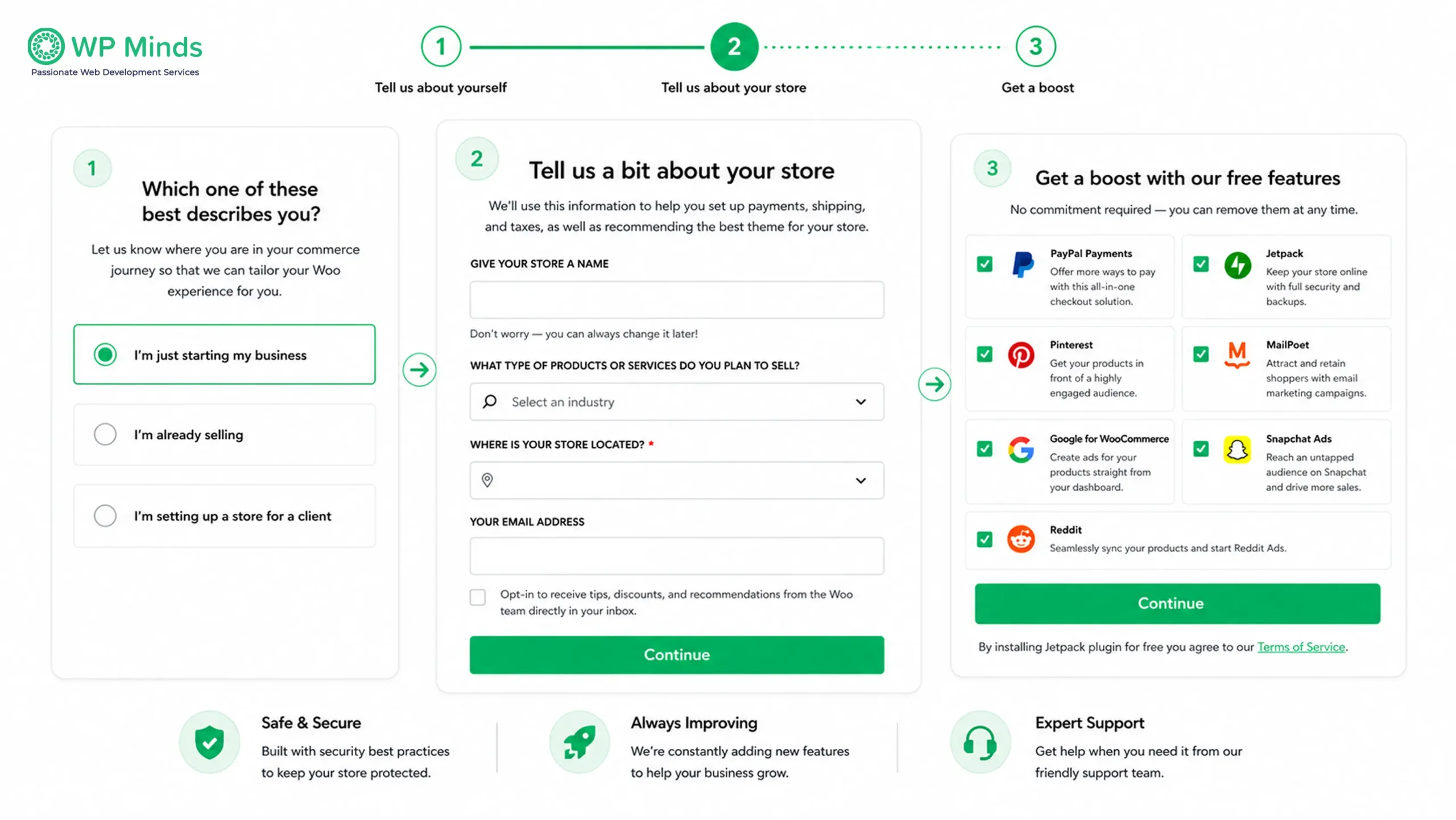
After activation, WooCommerce will open its onboarding process.
Complete the WooCommerce Setup Wizard
The WooCommerce setup wizard guides you through the initial configuration.
You may need to provide:
- Your business name and address
- Your industry
- The types of products you sell
- Your preferred currency
- Your selling locations
- Your payment preferences
- Your shipping requirements
Review recommended extensions before installing them. Your WooCommerce store may not need every suggested feature.
Review the Main Store Settings
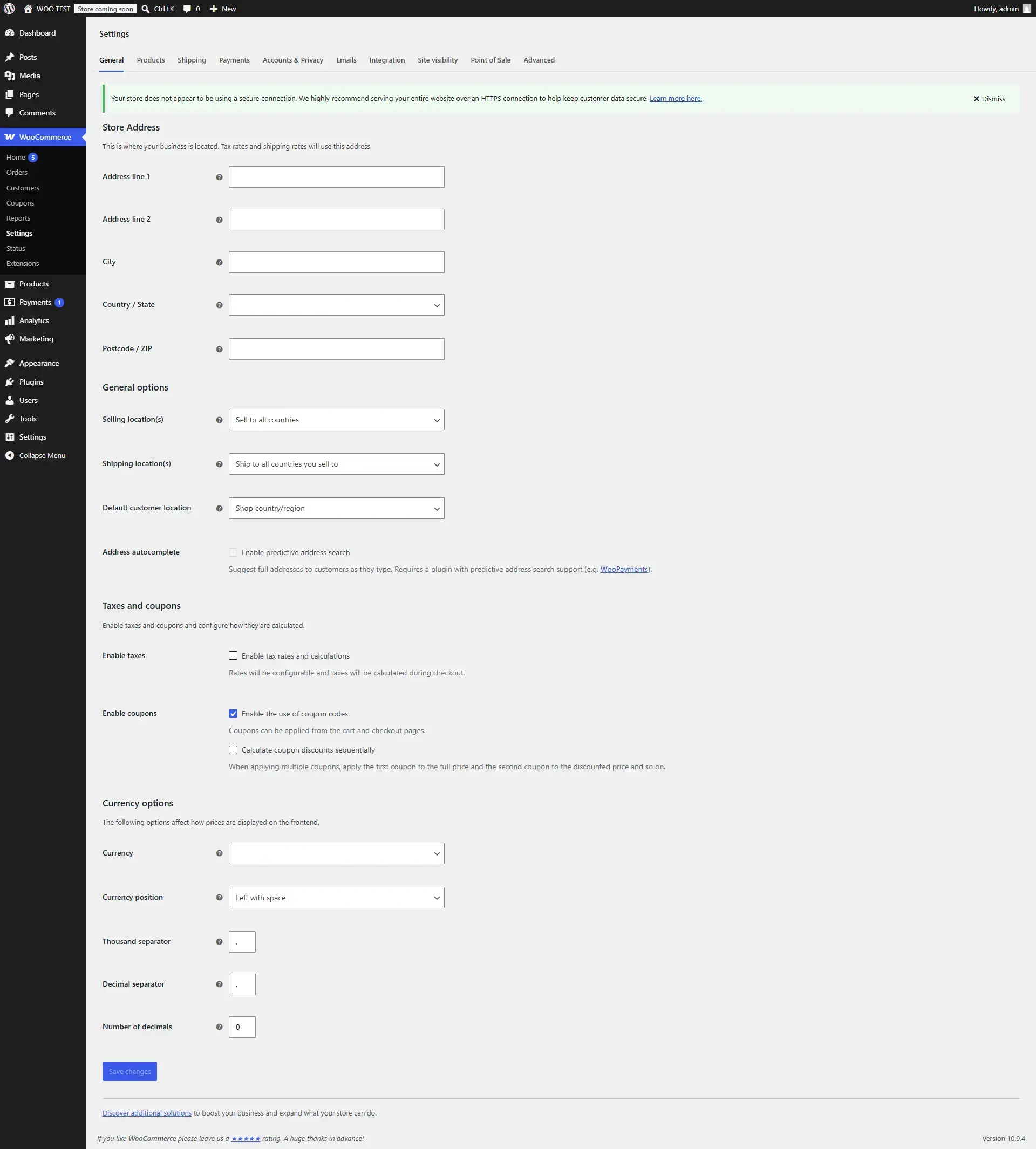
Go to WooCommerce > Settings and confirm your:
- Store address
- Currency
- Selling and shipping locations
- Tax options
- Product measurement units
- Customer account settings
Check that WooCommerce created the Shop, Cart, Checkout and My Account pages.
Also Read: How to Fix A WooCommerce Cart Issues
Step 2: Choose a WooCommerce Theme and Customize the Store Design
The layout or appearance of your store is majorly from your WooCommerce theme. Also, it can change speed, navigation, how well mobile devices work and product layouts.
Select a Compatible WooCommerce Theme
Choose a theme that is:
- Compatible with the latest WooCommerce version
- Responsive on mobile devices
- Lightweight and fast
- Regularly updated
- Accessible
- Supported by a reliable developer
Avoid selecting a theme only because its demonstration site looks attractive. Themes with unnecessary features can slow down your store.
Useful Read: 15 Best WooCommerce Sites Including Key Features
Build a Customer-Focused Store Design
A strong store design helps visitors find products and complete purchases without confusion.
Your main navigation may include:
- Shop
- Product categories
- About
- Frequently Asked Questions
- Contact
- Cart
- My Account
Maintain consistent design elements; ensure cart, search, contact and policies are accessible.
For additional guidance, review these website development best practices.
Optimize Your Product Pages
Each product page should include:
- Clear product images
- Pricing
- Availability
- Product variations
- A useful description
- Shipping information
- Return details
- A visible Add to Cart button
WooCommerce development aids custom layouts, integrations and advanced checkout features.
Step 3: Add Your First WooCommerce Products
Navigate to Products > Add New to create your first product.
Choose the Correct Product Type
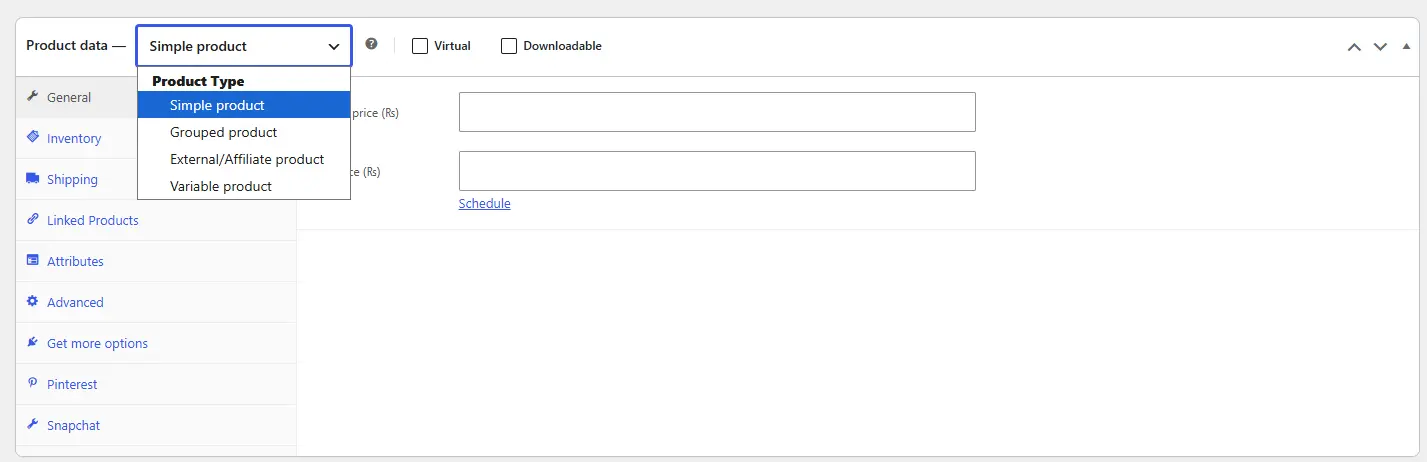
WooCommerce supports several product types, including:
- Simple products
- Variable products
- Grouped products
- External or affiliate products
- Virtual products
- Downloadable products
Select the correct type before entering product information. For example, a shirt available in several colors and sizes should normally be a variable product.
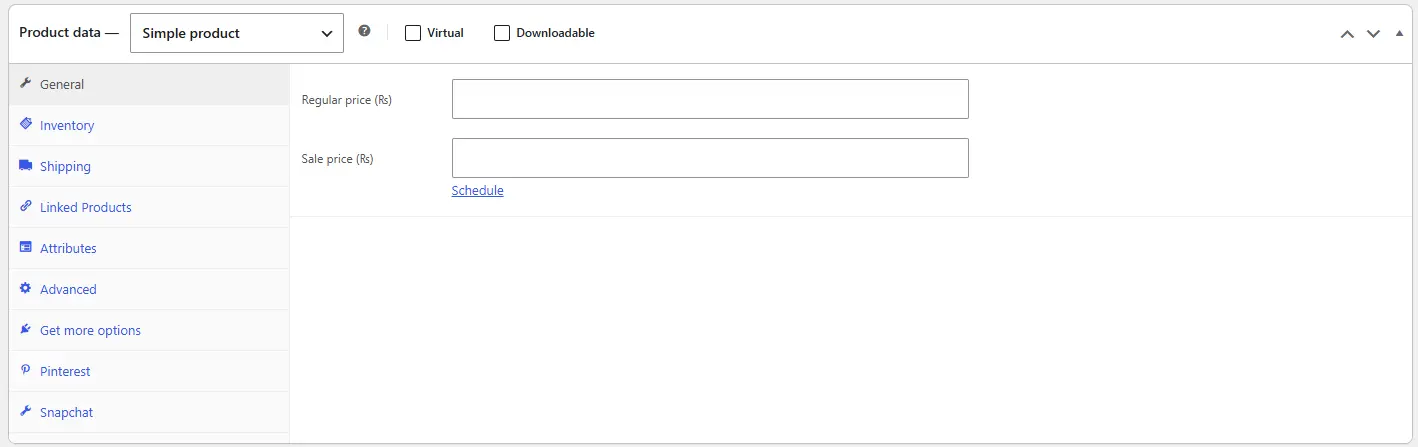
Complete the Product Information
The Product Data section lets you enter:
- Regular and sale prices
- SKU
- Stock quantity
- Backorder settings
- Weight and dimensions
- Product attributes
- Variations
- Linked products
Each product should also have a clear name, unique description, relevant category and high-quality images.
Organize Products Into Categories
Categonstall WordPress andted items with matching names easily. You can also add tags and attributes when they improve navigation. Avoid creating unnecessary categories with only one product. Test your structure with a small group of products before importing a large inventory.
Step 4: Configure Your Payment Gateway and WooCommerce Shipping
Customers need secure and convenient ways to pay for and receive their orders.
Choose a Secure Payment Gateway
A payment gateway transfers transaction information between your store, payment processor and customer’s bank.
Common options include:
- WooPayments
- Stripe
- PayPal
- Direct bank transfer
- Cash on delivery
Compare transaction costs, supported currencies, settlement times, fraud protection and refund tools.
Go to WooCommerce > Settings > Payments to enable your preferred option. WooCommerce provides official instructions for configuring payment settings.
Use your provider’s sandbox mode to test successful and unsuccessful transactions before accepting live payments.
Useful Read: Top 7 WooCommerce Payment Gateways for 2026
Create WooCommerce Shipping Zones
WooCommerce shipping zones determine which delivery methods customers receive based on their locations.
Go to WooCommerce > Settings > Shipping > Shipping Zones. Create zones for the countries, states or postal codes you serve.
You can add methods such as:
- Flat-rate shipping
- Free shipping
- Local pickup
- Carrier-calculated rates
Follow WooCommerce’s guide to setting up shipping zones for detailed instructions.
Set Up Shipping Classes
Shipping classes help you charge different rates for certain products. For example, you may create separate classes for:
- Heavy products
- Oversized items
- Fragile products
- Lightweight packages
Test different addresses, products and order values to confirm that customers receive the correct shipping rates.
Step 5: Test Your Store Before Going Live
Testing is an essential stage of the website development process. A store may look complete but still have problems with payments, emails or shipping calculations.
Test the Complete Buying Journey
Place test orders using desktop and mobile devices. Start on a product page and continue through checkout and order confirmation.
Confirm that:
- Add to Cart buttons work.
- Product variations display correctly.
- Coupons calculate accurately.
- Shipping rates match customer locations.
- Taxes are applied correctly.
- Payments are accepted and rejected correctly.
- Inventory decreases after an order.
- Customers receive order emails.
- Refunds can be processed.
- Account registration works.
- Password reset emails arrive.
Review Security and Legal Requirements
Before launching, make sure you have:
- An active SSL certificate
- Secure administrator passwords
- Two-factor authentication
- Automated backups
- Updated plugins and themes
- A privacy policy
- Shipping and return policies
- Terms and conditions
WooCommerce also recommends using trusted extensions, maintaining updates and regularly backing up your website.
Check Speed, SEO and Analytics
Compress product images and remove plugins you do not need. Configure caching carefully and test your important pages after optimization.
Your store should also have:
- SEO-friendly product URLs
- Unique page titles and descriptions
- Product schema
- An XML sitemap
- Google Analytics tracking
- Conversion tracking
- Google Search Console verification
Use this WooCommerce SEO guide to improve your store’s search visibility.
Also Read: 15 Best WooCommerce Plugins
Final Thoughts:
Strategy, design, product organization, secure payments, reliable shipping and thorough testing make a successful WooCommerce setup.
Choose the features your business needs now. And as your business expands, you can add subscriptions, memberships, marketing automation and complex integrations.
For assistance in developing a scalable and dependable online store, consider the WooCommerce store development services offered by WP Minds.
Professional support can help you avoid technical problems and build a better shopping experience, schedule a call at your convenience today!
More Related Blogs:
- WooCommerce Security: Guide and Prevention
- WooCommerce vs Shopify: Which is Better for Your Online Store in 2026?
- WooCommerce to Shopify Migration: Step-by-Step Guide
- Magento vs WooCommerce – A Detailed Comparison
- WooCommerce vs BigCommerce: The Ultimate 2026 Comparison
FAQs (Frequently Asked Questions)
Is WooCommerce hard to set up?
WooCommerce is relatively easy to install. However, taxes, shipping rules, payment integrations and product variations can require technical knowledge. Beginners can start with simple settings and introduce advanced features later.
Can WooCommerce handle 50,000 products?
Yes, WooCommerce can handle 50,000 products with suitable hosting, optimized code, efficient database queries, caching and properly configured search tools. Performance depends on your infrastructure and extensions, not only the number of products.
Is WooCommerce 100% free?
The core WooCommerce plugin is free and open source. However, you may need to pay for hosting, a domain, premium extensions, payment processing, development, security and maintenance.
What plugins and extensions should I install into WooCommerce for the first time?
Start with essential tools for payments, security, backups, SEO, caching, analytics and shipping. Avoid installing several plugins that perform the same function.
Is WooCommerce better than Shopify?
WooCommerce offers more control, customization and WordPress integration. Shopify provides a hosted platform that requires less technical maintenance. The best choice depends on your budget, technical resources and customization needs.
Is WooCommerce good for beginners?
Yes. WooCommerce includes a setup wizard and user-friendly product tools. Beginners should start with a simple theme, limited plugins and straightforward shipping rules.
How do I set up QuickBooks Web Connector with WooCommerce?

Popular Guides
View All Guides